
Home Network
Home Wi-Fi Speed Guide: How Much Internet Do You Need?
A practical guide to home internet speed, Wi-Fi bottlenecks, upload needs, speed tests, and when to upgrade the plan or the router.
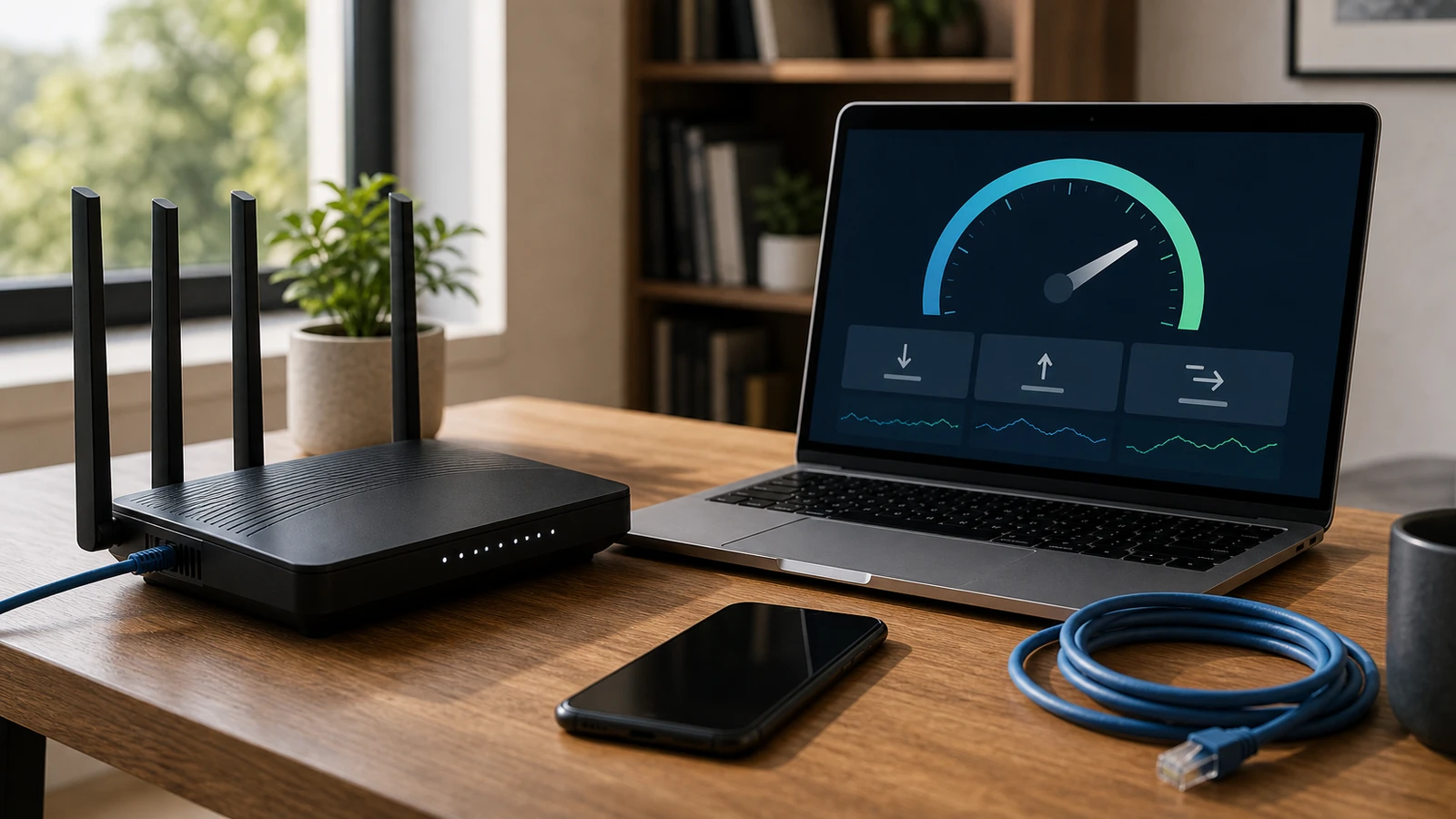
Home internet speed problems usually come from one of three places: the plan from the provider, the router, or the Wi-Fi signal inside the home. Buying a faster plan only fixes the first one. Buying a new router only fixes the second and third if the current hardware is actually the bottleneck.
The useful question is not “how many Mbps should I buy?” It is “where does the slowdown happen?”
Download speed vs upload speed
Download speed affects streaming, browsing, app downloads, game updates, and most web use. Upload speed affects video calls, cloud backups, sending large files, live streaming, camera uploads, and remote work tools.
Many people overbuy download speed and under-notice upload speed. A plan with very fast download but weak upload can still feel bad when two people are on video calls or a computer is backing up files in the background.
Use this rough planning guide:
| Household use | Practical baseline |
|---|---|
| Browsing, email, light streaming | 100/20 Mbps is usually comfortable |
| Two people working from home | 200/20 Mbps or better is safer |
| Multiple 4K streams plus gaming | 300-500 Mbps can help |
| Frequent large uploads or creator work | Prioritize upload, not just download |
| Smart home cameras uploading video | Upload headroom matters more than people expect |
The right plan depends on simultaneous use. Four devices sitting idle do not matter much. Four active high-demand tasks do.
The FCC benchmark matters, but it is not your whole answer
The FCC raised the fixed broadband benchmark for advanced telecommunications capability from 25/3 Mbps to 100/20 Mbps in its 2024 analysis. That is useful as a modern floor, not a guarantee that every household will feel fast at that level.
If your household has remote work, online classes, gaming, streaming, smart cameras, and cloud backups, the bottleneck may show up during peak hours even when the plan looks adequate on paper.
Test the right thing
Do not run one phone speed test from the couch and make a buying decision. Run four checks:
- Wired speed near the router: Connect a laptop by Ethernet if possible. This tests the internet plan and modem/router path.
- Wi-Fi near the router: Stand close to the router and test again. This shows what Wi-Fi can deliver under good signal.
- Wi-Fi in the problem room: Test exactly where calls buffer or streams fail.
- Peak-hour test: Repeat during the evening or normal work hours.
If wired speed is far below the plan, contact the provider or check modem and router limits. If wired speed is fine but distant Wi-Fi is poor, the plan is not the main problem.
Router placement beats many upgrades
Before buying hardware, try the boring fixes:
- Put the router in a central, open location.
- Avoid hiding it in a cabinet, behind a TV, or on the floor.
- Keep it away from thick walls, metal shelving, large appliances, and crowded cable boxes.
- Move it closer to the rooms where people actually work.
- Restart only as a temporary diagnostic, not as the permanent solution.
Wi-Fi is radio. A faster router in a bad location can still perform badly.
When the router is the bottleneck
The router may be the problem if:
- It is several Wi-Fi generations behind your devices.
- It lacks enough CPU or memory for many active devices.
- It only has 100 Mbps Ethernet ports.
- It becomes unstable under video calls or gaming.
- It cannot cover the home even after placement fixes.
- It no longer receives firmware updates.
If the internet plan is 500 Mbps but the router or Ethernet ports cap at 100 Mbps, the extra plan speed cannot reach your devices. Check the physical port ratings and the modem/router model before blaming the provider.
When the plan is the bottleneck
The internet plan may be the problem if:
- Wired speed near the router is close to the advertised limit.
- Multiple people slow down at the same time.
- Upload-heavy work breaks video calls.
- Cloud backups or security camera uploads cause lag.
- Provider speed drops sharply at peak hours.
In that case, upgrade based on the task causing pain. If uploads are the issue, a symmetrical fiber plan may help more than a huge download-only plan.
Mesh, extender, or Ethernet?
If one room is slow but the router room is fine, coverage is the issue. A mesh system can help when several rooms need coverage. A simple extender may help a single low-demand room, but it can also add latency and reduce throughput.
Ethernet remains the cleanest fix for stationary workstations, game consoles, TVs, and access points. If you can run cable safely and neatly, it can remove a lot of Wi-Fi guesswork.
Sources and further reading
- FCC 2024 broadband benchmark discussion
- FCC National Broadband Map guide
- Wi-Fi Alliance on Wi-Fi CERTIFIED 7
Frequently asked questions
- Is 100 Mbps enough for home internet?
- It can be enough for light to moderate use, but upload speed, simultaneous users, Wi-Fi coverage, and peak-hour performance matter. The FCC's 100/20 Mbps benchmark is a useful floor, not a guarantee for every home.
- Should I upgrade my internet plan or router first?
- Test wired speed near the router first. If wired speed is poor, look at the plan, modem, or provider. If wired speed is fine but Wi-Fi is poor in another room, fix placement, coverage, or router hardware.
- Why is my Wi-Fi slow even with a fast internet plan?
- The signal may be blocked by distance, walls, placement, device limits, old router hardware, or crowded channels. A faster plan cannot fix a weak Wi-Fi path inside the home.
Last updated May 10, 2026. See our editorial policy for methodology and corrections.
The Signal Brief
One useful dispatch each week.
One sharp take, three things worth reading, and the week's buying signals.