

Workspace
Secure Boot Certificate Expiration 2026: Home Office Checklist
Older Secure Boot certificates begin expiring in June 2026. Here is the checklist for checking Windows Security before boot protections age out.
Many home-office Windows users are about to hit a deadline that does not look urgent until you read the fine print.
Microsoft says its older Secure Boot certificates, originally issued in 2011, begin expiring in June 2026. If your PC has not received the newer 2023 certificates, the machine should still boot and run, but it can lose access to future boot-chain protections.
That makes this a checklist job, not a wait-and-see job.
What is expiring
Microsoft’s support guidance says the older Microsoft Secure Boot certificates carried on Windows devices begin expiring in 2026.
The most immediate date in Microsoft’s certificate table is:
- June 24, 2026 for Microsoft Corporation KEK CA 2011
The same table also shows:
- October 19, 2026 for Microsoft Windows Production PCA 2011
For most home-office users, the practical takeaway is simple: if you have not checked your PC’s Secure Boot certificate status yet, late May 2026 is already the right time.
What happens if you ignore it
Microsoft says an unupdated device can keep booting and using Windows, but it will no longer be able to receive:
- new Windows Boot Manager protections
- Secure Boot database and revocation updates
- fixes for newly discovered early-boot vulnerabilities
Microsoft also says scenarios that rely on Secure Boot trust, including some BitLocker hardening paths and certain third-party boot components, may be affected over time.
This is why “the PC still turns on” is the wrong success test.
The home-office checklist
1. Check Windows Security now
Microsoft added a clearer status view in the Windows Security app in April 2026.
Open:
- Windows Security
- Device security
- Secure Boot
Microsoft says the page now shows certificate-update status and whether action is needed.
2. Read the badge and the text together
Microsoft’s support page says:
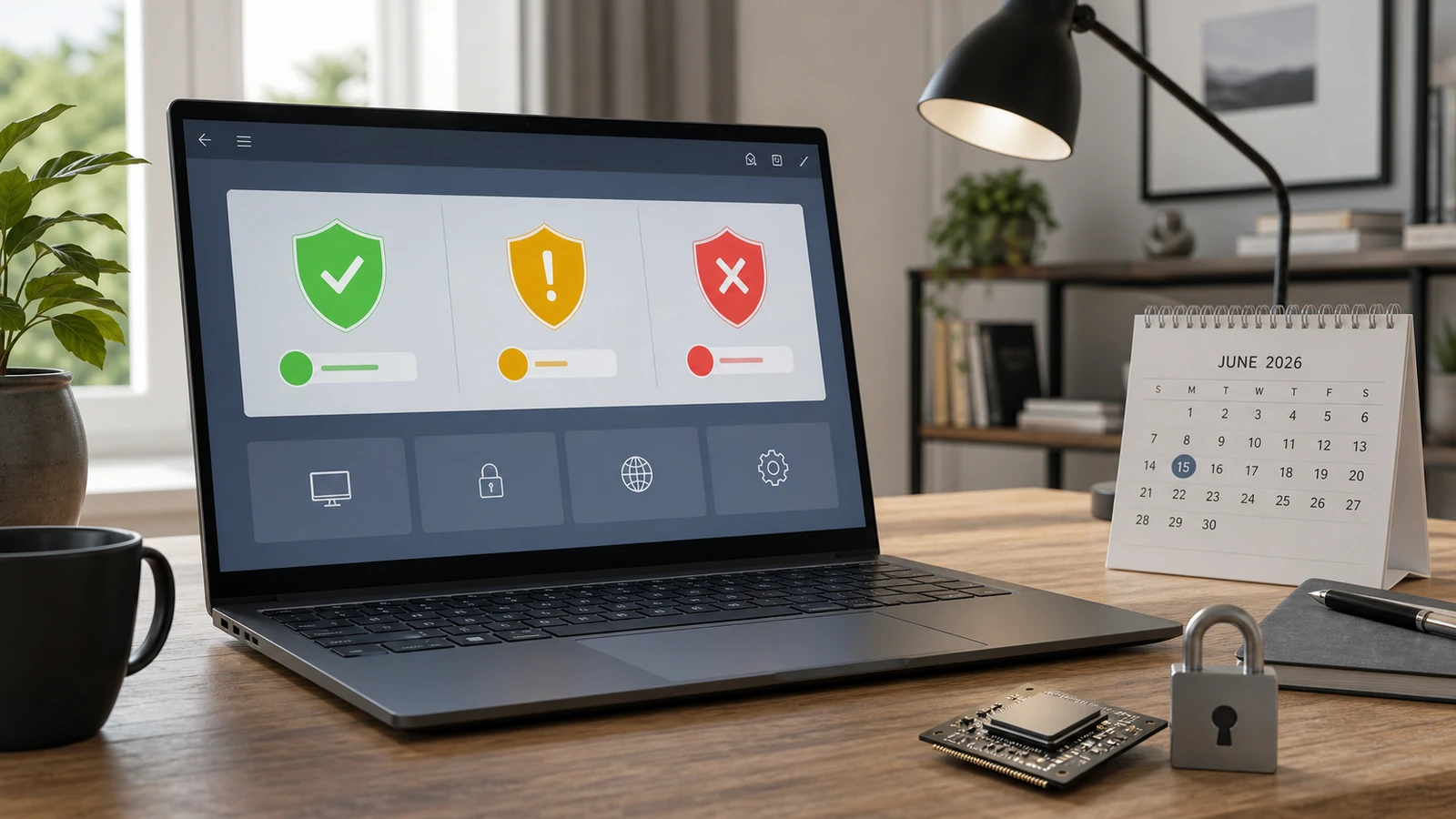
- a green badge means the device is sufficiently protected
- a yellow badge means there is a safety recommendation
- a red badge means something needs immediate attention
Microsoft also warns that a green icon by itself is not enough. It says you should also confirm the text indicating that all required certificate updates have been applied.
3. Do not assume Windows Update alone solves every PC
Microsoft says most devices should receive the 2023 certificates automatically, but some systems may also require an OEM firmware update.
That means the practical check is:
- run normal Windows updates
- check the Secure Boot status screen
- check the PC maker’s support page if the status is not fully updated
If the device is older or outside vendor support, firmware availability can be the real constraint.
4. Do not disable Secure Boot as a workaround
Microsoft is explicit here: disabling Secure Boot to work around certificate expiration is not the recommended path.
The company says turning Secure Boot off reduces protection against boot-level malware and can create new security and compliance risk.
For a home-office PC that handles work documents, client email, or finance files, that is the wrong trade unless a vendor or IT admin gives you a very specific reason.
5. Prioritize primary work machines first
Move faster if the device is:
- your main work laptop
- a shared office desktop
- a PC using BitLocker
- an older Windows 10 system still being stretched into 2026
The risk here is not immediate app failure. It is silent drift into weaker boot protection on the machine you depend on most.
6. Keep the problem scoped correctly
Microsoft says everyday app use, networking, browsing, and most OS features remain unchanged even if the older certificates expire.
That matters because it tells you what this article is not saying.
It is not a claim that your PC stops working on June 24, 2026.
It is a claim, based on Microsoft’s own guidance, that unupdated devices lose the ability to receive future boot-related protections and related mitigations.
7. Treat yellow and red states as work items, not decoration
If Windows Security shows a yellow or red state, the next steps are usually:
- install pending Windows updates
- restart if required
- re-check the Secure Boot page
- check your OEM’s firmware support notes
If the machine is managed by an employer or school, use your IT path instead of trying to improvise firmware changes alone.
The short decision rule
If your device says all required Secure Boot certificate updates are applied, you are in the best state and should just keep the machine updated.
If the device only looks generally healthy but does not clearly show the new certificate state, verify it before June 24, 2026 instead of assuming the job is done.
If your PC depends on OEM firmware that the vendor no longer ships, plan around that now rather than after the old trust chain starts aging out.
Sources and further reading
- Microsoft Support: When Secure Boot certificates expire on Windows devices
- Microsoft Support: Windows Secure Boot certificate expiration and CA updates
- Microsoft Support: Secure Boot certificate update status in the Windows Security app
- Microsoft Learn: Update Secure Boot Certificates for Windows Devices
- Related: Windows 10 End of Support: Home Office Upgrade Checklist and Microsoft 365 on Windows 10: Support Dates That Matter
Frequently asked questions
- Will my Windows PC stop booting when the older Secure Boot certificates expire?
- Microsoft says the device should still start and operate normally. The bigger issue is that future Secure Boot and Boot Manager protections may no longer apply if the new 2023 certificates are missing.
- What is the fastest way to check my status?
- Open Windows Security, then go to Device security and Secure Boot. Microsoft says that page now shows whether the certificate updates are applied and whether action is needed.
- Should I turn off Secure Boot if updates look messy?
- No. Microsoft specifically says disabling Secure Boot is not the recommended workaround because it weakens protection against boot-level malware and related threats.
Last updated May 26, 2026. We re-check Microsoft’s live Secure Boot guidance and recommend confirming your OEM’s firmware notes because support wording and device eligibility can change.
The Signal Brief
One useful dispatch each week.
One sharp take, three things worth reading, and the week's buying signals.