
Home Network
Home Router Security Checklist: 10 Settings to Change
A practical home router security checklist for passwords, firmware updates, guest Wi-Fi, WPA settings, remote access, and device cleanup.
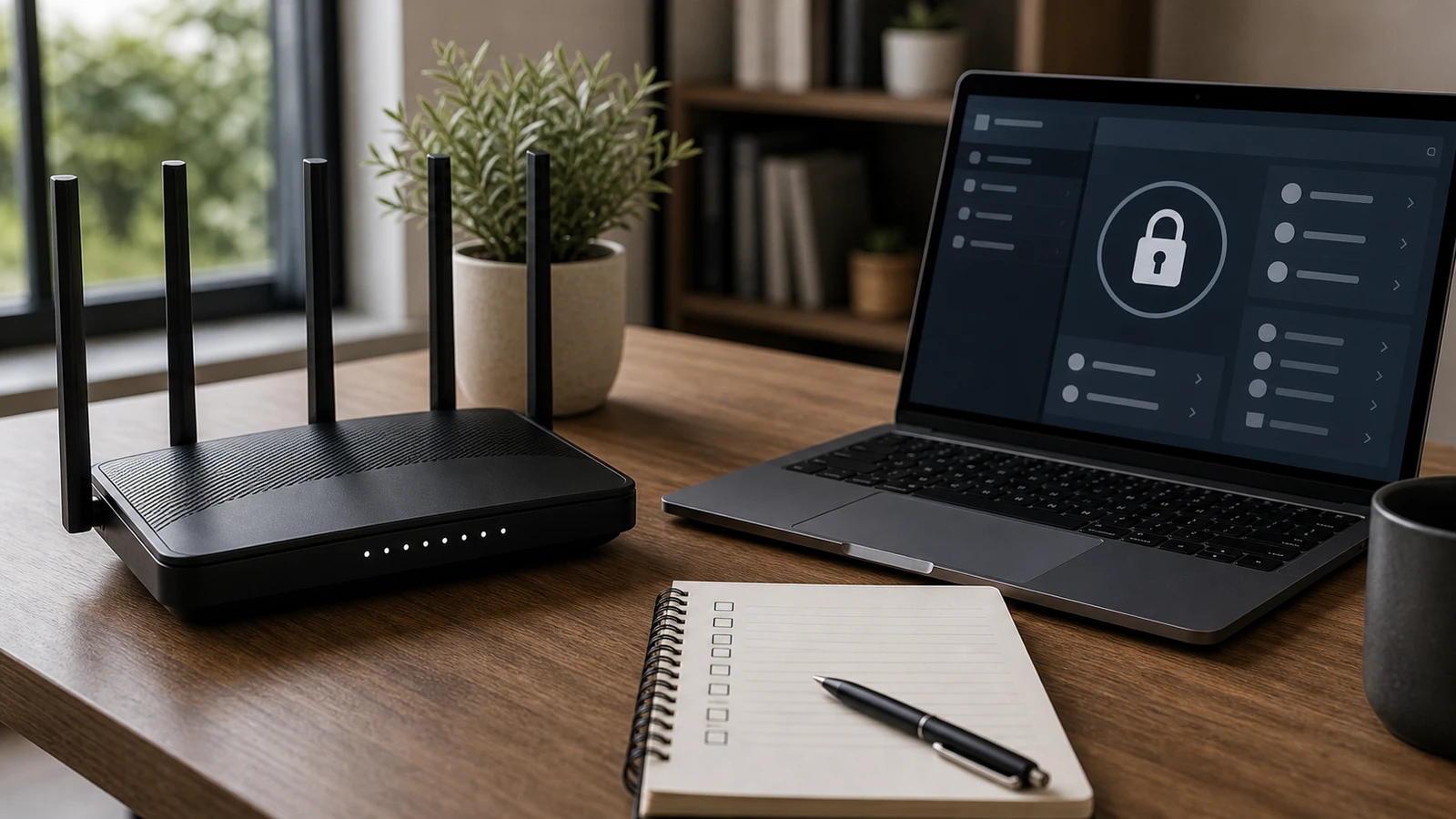
Your router is the front door for most home devices. Phones, laptops, TVs, speakers, cameras, printers, and smart home accessories all depend on it. If it uses old firmware, default admin settings, weak Wi-Fi security, or open remote access, the whole home network becomes harder to trust.
The good news: most home router security is not complicated. It is maintenance.
1. Change the router admin password
The router admin password controls the settings page. It is different from the Wi-Fi password people use to join the network.
Change it to a unique password that you do not use anywhere else. Store it in a password manager. If the router still uses a default username and password, change them before changing anything else.
2. Update firmware
Firmware updates can fix security problems and improve stability. Check the router app or web interface for updates. If automatic updates are available and the router supports them reliably, turn them on.
If a router no longer receives updates from the manufacturer, treat that as a reason to replace it, especially if it controls many devices.
3. Use WPA2 or WPA3, not old security modes
Use WPA3 Personal if all important devices support it. WPA2 Personal with AES is still common for mixed homes. Avoid WEP and old mixed modes that keep outdated security alive for compatibility.
If one old device forces the whole network into weaker settings, consider replacing that device or putting it on a separate guest network.
4. Use a strong Wi-Fi password
The Wi-Fi password should be long, unique, and not shared outside the home without need. Avoid names, addresses, phone numbers, team names, and passwords already used on websites.
If the password has been shared widely, change it and reconnect only the devices that should still be on the network.
5. Rename the network without revealing personal information
The network name does not need to include your apartment number, family name, router brand, or exact address. A neutral name is enough.
Changing the network name is not a security shield by itself, but it avoids giving extra clues to people nearby.
6. Disable remote administration unless you need it
Remote administration lets router settings be changed from outside the home network. Most households do not need it.
If remote administration is enabled, turn it off unless you understand the risk, use strong authentication, and have a real need. Do not expose router admin pages to the internet casually.
7. Review connected devices
Open the router app or admin page and review the connected device list. Disconnect devices you do not recognize. Rename known devices so future checks are easier.
Expect some names to be vague. Phones, smart TVs, printers, and smart home devices may show manufacturer names instead of friendly names. If you are not sure, pause before blocking something important.
8. Use a guest network for visitors and smart devices
A guest network is useful for visitors, temporary devices, and smart home gear that does not need access to your computers or file shares.
Keep the guest password separate from the main Wi-Fi password. Turn off guest access when it is no longer needed if your router makes that easy.
9. Turn off WPS if you do not use it
WPS was designed to make device pairing easier, but many households do not need it. If your router offers WPS and you are not actively using it, turn it off.
Manual password entry is slightly less convenient and usually a better default.
10. Document the setup
Keep a simple note with:
- Router model
- Admin URL or app name
- Firmware update setting
- Main network name
- Guest network name
- Date you last reviewed devices
Do not store raw passwords in an unprotected note. Use a password manager for credentials.
Replace the router when maintenance stops
A router that cannot receive updates is not just old. It is unmanaged. If the manufacturer no longer publishes firmware, the admin interface is unreliable, or the router cannot support modern Wi-Fi security, replacement may be the simpler and safer path.
Sources and further reading
- CISA Home Network Security
- CISA: Securing Your Home Wi-Fi
- CISA: Securing Home and Small Business Routers
Frequently asked questions
- Is the router admin password the same as the Wi-Fi password?
- No. The admin password protects the router settings page. The Wi-Fi password lets devices join the wireless network. Both should be strong and unique.
- Should I use WPA3?
- Use WPA3 Personal when your important devices support it. If older devices cannot connect, WPA2 Personal with AES is a common fallback. Avoid obsolete modes like WEP.
- How often should I check router security?
- Check firmware, connected devices, guest access, and passwords every few months, after moving homes, after sharing the Wi-Fi password widely, or after any suspected compromise.
Last updated May 10, 2026. See our editorial policy for methodology and corrections.
The Signal Brief
One useful dispatch each week.
One sharp take, three things worth reading, and the week's buying signals.