
Workspace
Home Office Setup Guide: Desk, Monitor, Chair, Lighting
A practical home office setup guide for monitor height, chair fit, keyboard position, lighting, cables, and what to upgrade first.
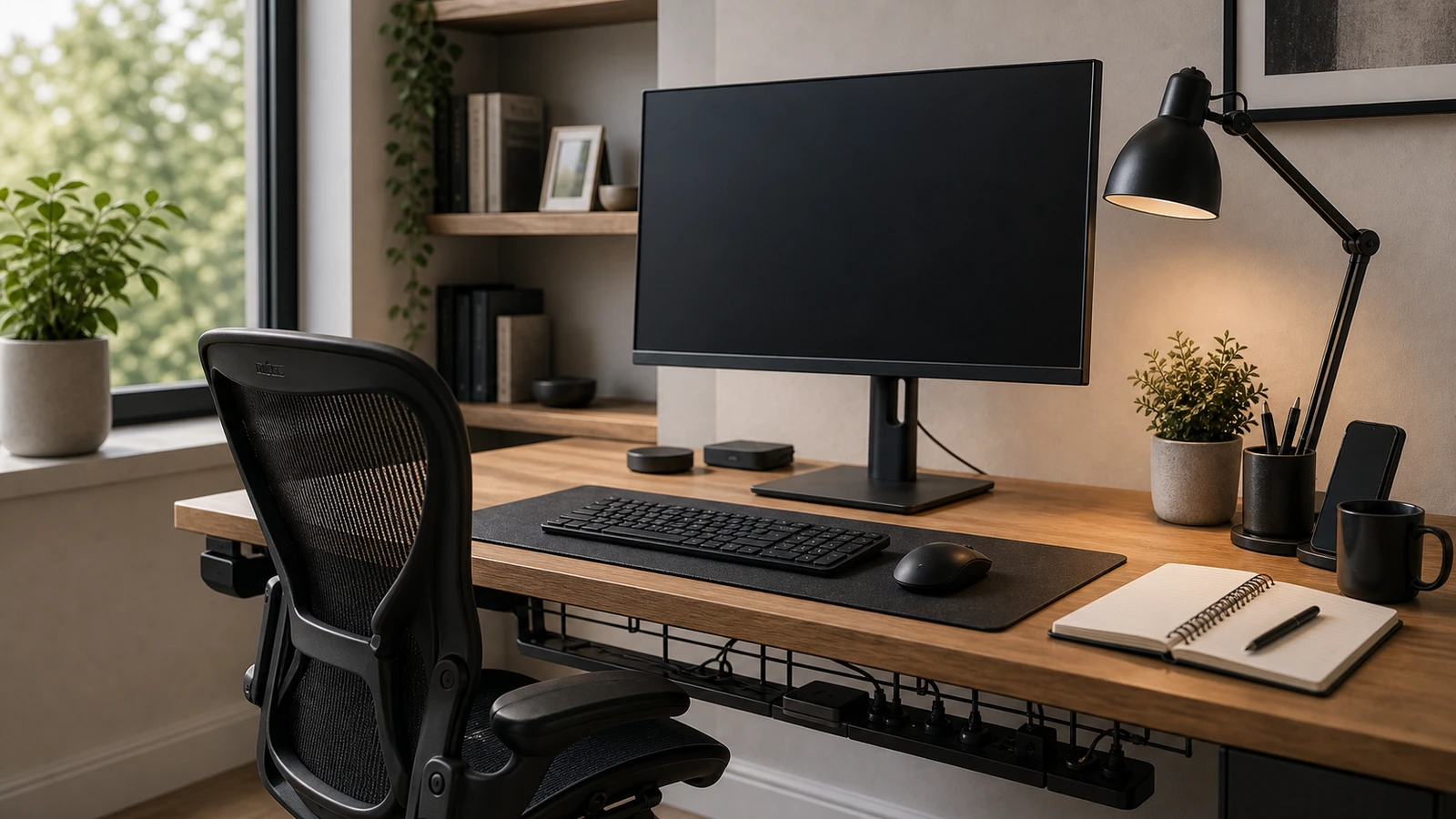
A good home office setup is mostly a fit problem. Before buying a premium chair, a wider desk, or a second monitor, measure the few positions that shape your day: feet, knees, elbows, wrists, neck, eyes, and the distance from your body to the work you use most.
The goal is not to copy a perfect desk photo. The goal is to remove repeated strain, glare, clutter, and small reach problems so work feels easier after several hours.
The 10-minute setup order
Start with the cheapest changes first:
- Set chair height so feet are supported and thighs are not pressed into the front edge of the seat.
- Bring keyboard and mouse close enough that elbows stay near the body.
- Raise or lower the monitor so the top of the screen sits around eye level.
- Move the monitor an arm’s length away, then adjust text size if needed.
- Turn the monitor perpendicular to windows or bright lights to reduce glare.
- Remove items you rarely use from the primary reach zone.
- Route power and charging cables so they do not pull, snag, or sit under feet.
If one step makes another step worse, fix the chair and input position first. Monitor height is easier to adjust with a stand, stack, or arm than elbow height is on a fixed desk.
Chair fit matters before chair price
An expensive chair can still fit badly. A budget chair can work if it supports the position you need and lets you change posture during the day.
Check these points:
- Seat height: Feet should rest flat on the floor or on a stable footrest.
- Seat depth: The front edge should not press into the back of the knees.
- Back support: The lower back should feel supported without forcing a stiff upright pose all day.
- Armrests: They should let shoulders relax. If they force shoulders up or block the desk, lower them, remove them, or stop using them.
- Movement: A chair that allows small posture changes is usually better than one that locks you into a single “correct” position.
Do not judge the chair while the desk is still wrong. If the keyboard is too high, you may raise the chair and lose foot support. In that case, a footrest or keyboard tray may solve more than a new chair.
Desk height should follow elbow height
For typing, the keyboard should sit near elbow height. Your shoulders should be relaxed, elbows close to the body, and wrists roughly in line with forearms. If the desk is too high, you may shrug to type. If it is too low, you may bend wrists or lean forward.
For a fixed-height desk, the practical options are:
- Raise the chair and add a footrest.
- Add an adjustable keyboard tray.
- Use a lower-profile keyboard.
- Move rarely used items out of the work zone so the keyboard can sit closer.
Standing desks are useful when they are adjusted correctly. They are not a cure for a bad workstation. If standing raises the monitor but leaves the keyboard too high or too far away, the setup still fails.
Monitor placement: height, distance, glare
A monitor should be directly in front of you for work you do most. Placing the main display off to one side can make the neck twist for hours.
Use this baseline:
- Put the display at least about 20 inches away.
- Keep the top line of the screen around eye level or slightly below.
- Increase font size before pulling the monitor too close.
- Set the screen perpendicular to windows when possible.
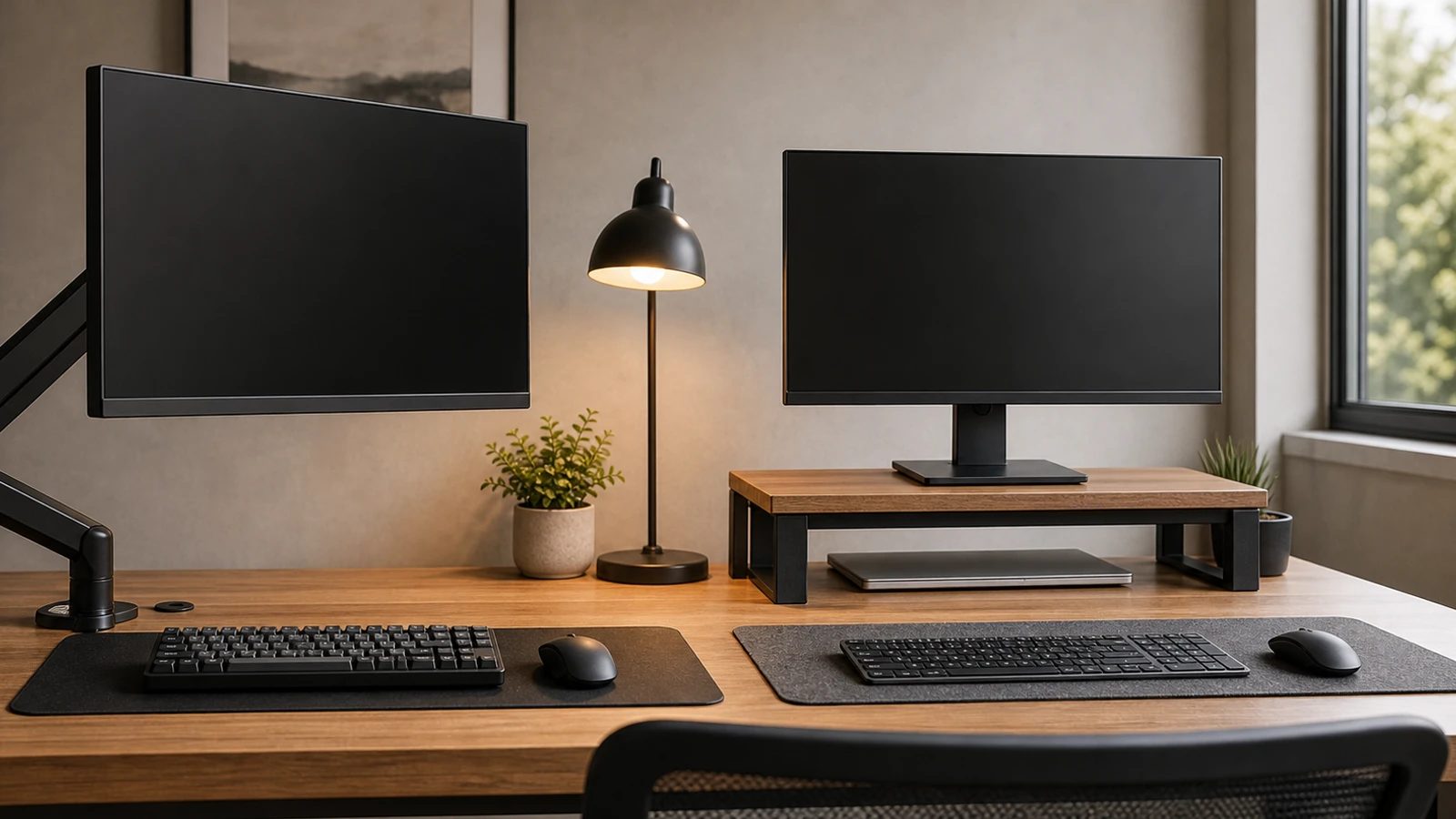
- If you use two displays, put the primary display directly in front and angle the secondary display inward.
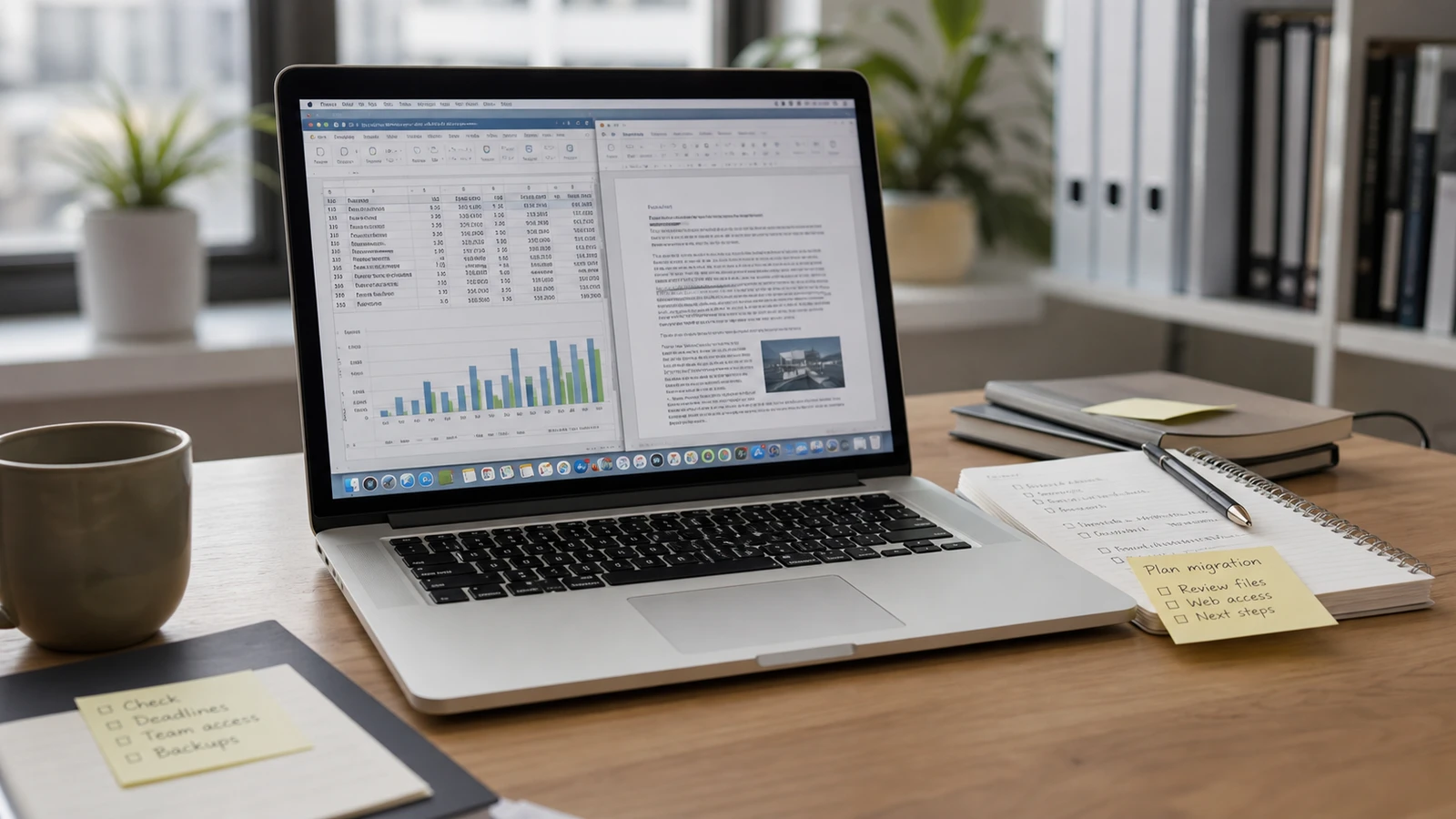
Laptop-only work often breaks this rule because the screen and keyboard are attached. For longer sessions, a laptop stand plus external keyboard and mouse is usually a bigger improvement than a cosmetic desk accessory.
Lighting should reduce contrast, not just brighten the desk
The problem is often contrast: a bright window behind the monitor, a lamp reflecting off the screen, or a dark room around a bright display.
Try this before buying anything:
- Move the monitor so light hits it from the side, not behind or directly in front.
- Use blinds or curtains when the sun crosses the screen.
- Add soft ambient light behind or beside the monitor.
- Keep task lamps aimed at paper or objects, not the display.
- Match screen brightness to the room rather than maxing it out.
If your eyes feel tired at the end of the day, do not assume the only answer is a new monitor. Placement, brightness, glare, text size, and breaks all matter.
Cable and power cleanup
Cable management is not only about appearance. Loose power bricks, stretched charging cables, and overloaded power strips create friction every day and can create hazards.
Keep high-use chargers reachable, but keep the power strip off the floor when possible. Label cables if you unplug devices often. Avoid routing cords where a chair can roll over them repeatedly. If a cord, plug, or power strip is warm, cracked, loose, or damaged, stop using it.
For the safety side, see the dedicated guide to power strips and surge protectors.
Upgrade order
When the baseline setup is wrong, buy in this order:
- Footrest or keyboard tray if the desk height cannot match your body.
- Laptop stand or monitor riser if the display is too low.
- External keyboard and mouse if you work long sessions on a laptop.
- Better task or ambient lighting if glare or contrast is the issue.
- Monitor arm if the stand cannot place the screen correctly or the desk is crowded.
- Chair if your current one cannot support foot, thigh, back, and movement needs after adjustment.
- Desk if the surface is too shallow, unstable, or impossible to adjust around.
That order is deliberately boring. It prevents the common mistake of buying the most visible object first while the real problem is height, distance, or reach.
What not to buy first
Skip these until the basics are fixed:
- Decorative desk mats that make the mouse worse.
- Huge monitors if the desk is too shallow.
- Monitor light bars that shine into your eyes or reflect off glossy screens.
- Expensive chairs bought without checking seat height and depth.
- Standing desks used as a substitute for breaks and movement.
- Cable trays that hide overload instead of reducing it.
Sources and further reading
- OSHA Computer Workstations eTool: evaluation checklist
- OSHA Computer Workstations eTool: monitors
- OSHA Computer Workstations eTool: keyboards
- U.S. Department of Energy: estimating home electronic energy use
Frequently asked questions
- What is the first thing to fix in a home office setup?
- Fix chair height, foot support, keyboard distance, and mouse position first. Those affect your body all day and usually cost little or nothing to adjust.
- Do I need a standing desk?
- Not necessarily. A standing desk helps if it fits both sitting and standing positions, but it does not replace correct monitor height, keyboard height, foot support, and regular movement.
- Is a monitor arm worth it?
- A monitor arm is worth it when the stock stand cannot reach the right height, the desk is shallow, or you need to move the display often. A simple riser is enough for many fixed setups.
Last updated May 8, 2026. See our editorial policy for methodology and corrections.
The Signal Brief
One useful dispatch each week.
One sharp take, three things worth reading, and the week's buying signals.